synthetic-invoice.pdf
Invoice PDF · 1 page
PDF to Excel converter
Convert native or scanned PDFs into editable Excel spreadsheets. AI and OCR extract tables, invoices, and reports into clean rows and columns.
Choose and upload your PDF inside the converter. A free account is required; usage limits apply.
No credit card required. No file has been uploaded yet.
See the workflow
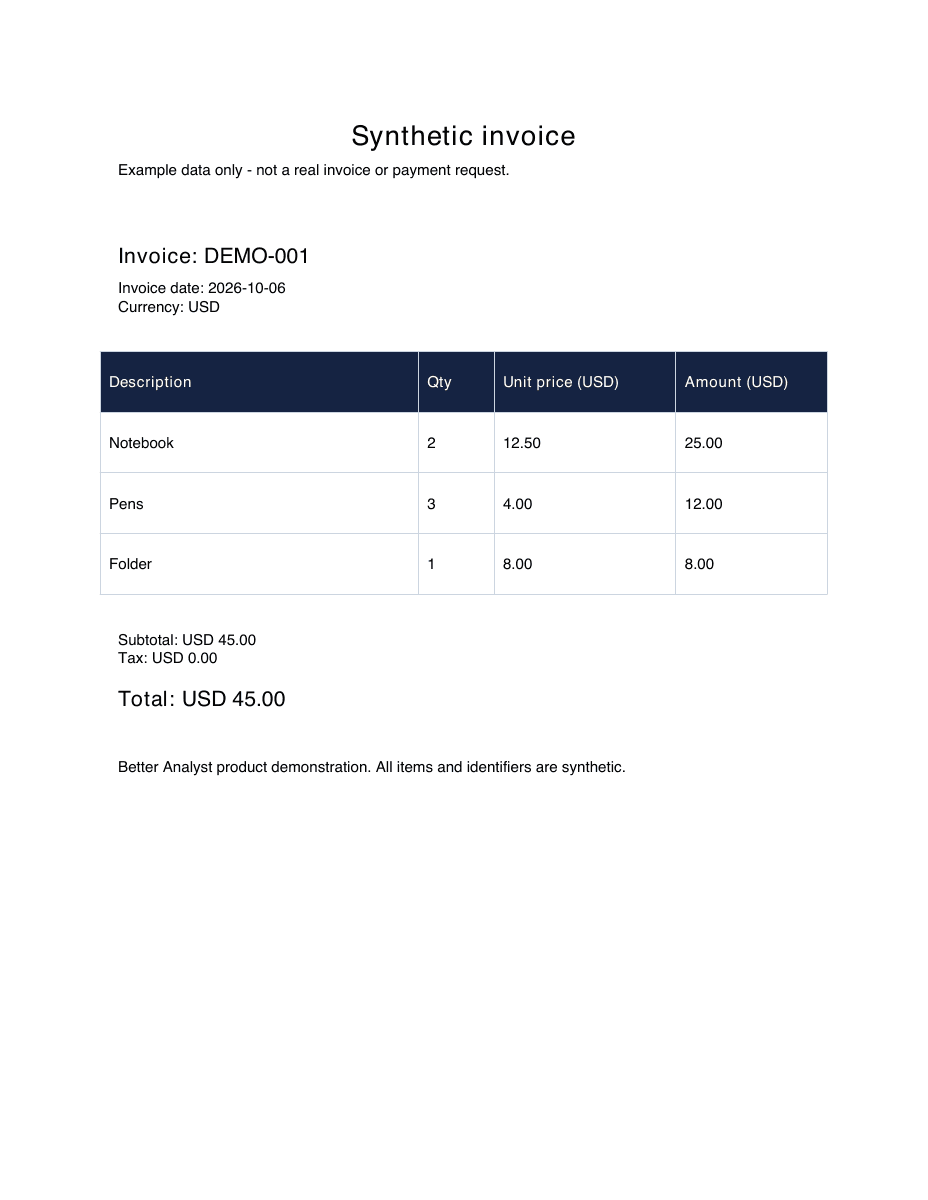
A real AI Extract conversion recorded on October 6, 2026 using a synthetic one-page invoice. All three line items, dates and amounts were checked against the source. This text-based PDF does not demonstrate scanned-document OCR.
Invoice PDF · 1 page
Data sheet · Original column order and values
| qty | date | amount | invoice | unit_price | description |
|---|---|---|---|---|---|
| 2 | 2026-10-06 | 25 | DEMO-001 | 12.5 | Notebook |
| 3 | 2026-10-06 | 12 | DEMO-001 | 4 | Pens |
| 1 | 2026-10-06 | 8 | DEMO-001 | 8 | Folder |
Verified sum of amount (USD): $45.00
AI Extract with row review enabled; 12 AI Actions for this run. The Source QA sheet flags a missing amount in one citation even though the extracted value is correct. Always review your own results. Account and plan limits apply to conversions; these samples are free to download.
Convert supported PDF tables, invoices, and reports into an editable Excel workbook. Choose Table Extract for text-based tables or AI Extract for more complex documents; enable the scanned-document option when needed.
Anyone who's worked with data knows the drill: you get a PDF packed with useful information, but you need it in Excel to actually do something with it. So you're stuck copying and pasting for hours, trying not to miss anything important or mess up the numbers.
We built our PDF to Excel converter because frankly, life's too short for manual data entry.
Upload your PDF, and the software figures out what's data and what's just formatting. It looks for tables, identifies headers, and organizes everything into proper Excel columns and rows.
The technology behind it handles different types of content — text, numbers, even simple charts and images. It's smart enough to understand context, so related information stays together instead of getting scattered across your spreadsheet.
Want more control? You can tell the tool exactly what to look for. Need just the invoice numbers, dates, and totals? Specify those fields and skip everything else. This cuts down on cleanup time and gives you a focused dataset right from the start.
Most people come here with the same job: they've got a PDF full of tables — financial statements, product lists, exported reports — and they need those tables in Excel without retyping every cell. Better Analyst identifies each table, figures out where the headers are, and drops the whole thing into an Excel file with rows and columns intact.
Download an editable .xlsx workbook, then compare headers, row counts, dates, and totals with the original PDF. Complex layouts and merged cells may need corrections before analysis.
Not every PDF is a tidy, digitally-generated document. A lot of the files people need to convert are scans of printed invoices, photographs of receipts, or old reports that were run through a copy machine and saved as an image. Plain PDF converters choke on these — they see pictures, not text.
For scanned PDFs, choose AI Extract and enable the scanned-document option. Clear, high-resolution pages give the extraction process more reliable input. Check ambiguous characters and financial totals against the source; OCR is not a guarantee of perfect transcription.
Once your PDF is converted, the real work begins. Instead of opening Excel and manually wrestling with pivot tables, drop the converted spreadsheet into Better Analyst's Excel AI chat and ask questions in plain English — “what was the biggest expense last quarter?”, “show me a chart of sales by region”, “clean up the dates column” — and get formulas, charts, and analysis back in seconds.
It's the natural next step after conversion: PDF → clean Excel file → instant analysis, all without leaving Better Analyst.
Turn those quarterly PDF reports into Excel files you can actually work with — add formulas, create charts, compare periods.
Stop retyping vendor invoices. Extract the key details automatically and get them into your accounting system faster.
Convert PDF sales reports into Excel so you can dig into the numbers, spot trends, and build presentations for your team.
Pull project data from PDF status reports into Excel where you can track progress, update timelines, and share updates.
Move employee information from PDF forms into Excel databases for easier sorting, filtering, and analysis.
Data conversion tools like this represent a shift toward automation that actually makes sense. Instead of automating for automation's sake, we're eliminating genuinely tedious work that nobody enjoys doing.
As these tools get better, we'll see more sophisticated extraction capabilities — better handling of complex layouts, improved accuracy with handwritten content, and smarter recognition of data relationships. But the core value remains the same: getting your data where you need it without the manual drudgery.
Compare your options
Open a neutral research prompt in the AI tool you already use. Compare capabilities, limitations, and fit before you choose.
AI answers can be incomplete. Check source links, current pricing, and product documentation before deciding.
Open the converter, choose an extraction mode, and turn your PDF data into an editable workbook. A free account is required; usage limits apply.