The 7 Best AI Tools for Excel in 2026
AI can now write formulas, clean data, and build charts from a sentence. The tools differ in what happens next: whether they actually calculate, work with your real files, and hand back something you can use.
 By Better Analyst11 min read
Disclosure: Better Analyst publishes this blog and makes the first tool on this list. We judged every tool on the same criteria and list the trade-offs for each, including our own.
On this page
The short answer
Better Analyst is the best AI for Excel if you want answers, not just formulas: it reads the whole workbook, runs the analysis in code, and returns charts, dashboards, and a cleaned spreadsheet. Choose Microsoft Copilot if your company already licenses Microsoft 365 and you only need help inside the grid, and ChatGPT or Claude for occasional one-off questions.
Top picks at a glance
| # | Tool | Best for | Starting price |
|---|---|---|---|
| 1 | Better Analyst | Full spreadsheet analysis, formulas, charts, and reports | Free; Starter $20/mo |
| 2 | Microsoft Copilot in Excel | Teams already paying for Microsoft 365 | $21–$30/user/mo add-on |
| 3 | ChatGPT | One-off questions about an uploaded file | Free; Plus $20/mo |
| 4 | Claude | Reasoning through long, messy workbooks | Free; Pro $20/mo |
| 5 | Gemini in Google Sheets | Google Workspace teams working in Sheets | Included with many Workspace plans |
| 6 | Excel Analyze Data | Quick suggested charts and pivots | Included with Microsoft 365 |
| 7 | Free AI formula generators | Writing a single formula fast | Free |
Prices are published list prices as of October 2026 and may change. Copilot requires a qualifying Microsoft 365 plan in addition to the add-on.
How we chose
We compared every tool against the same five jobs that make up most spreadsheet work, using each vendor’s published features and pricing:
- Formulas: can it write and explain lookups, conditional sums, and nested logic?
- Cleaning: can it fix dates, remove duplicates, and fill gaps across a real workbook?
- Analysis: can it answer an open question, such as what drove a change in revenue?
- Visualization: can it produce a chart a manager could read in ten seconds?
- Output: does it return a workbook or report someone else can open and check?
We weighted accuracy and the ability to show work most heavily, then file support, output quality, and total cost for a single user.
The 7 best AI tools for Excel
Better Analyst
Our pickThe most complete AI for Excel. It handles the whole job, from formulas and cleanup to charts, dashboards, and a finished workbook, and it runs every calculation in code you can inspect.
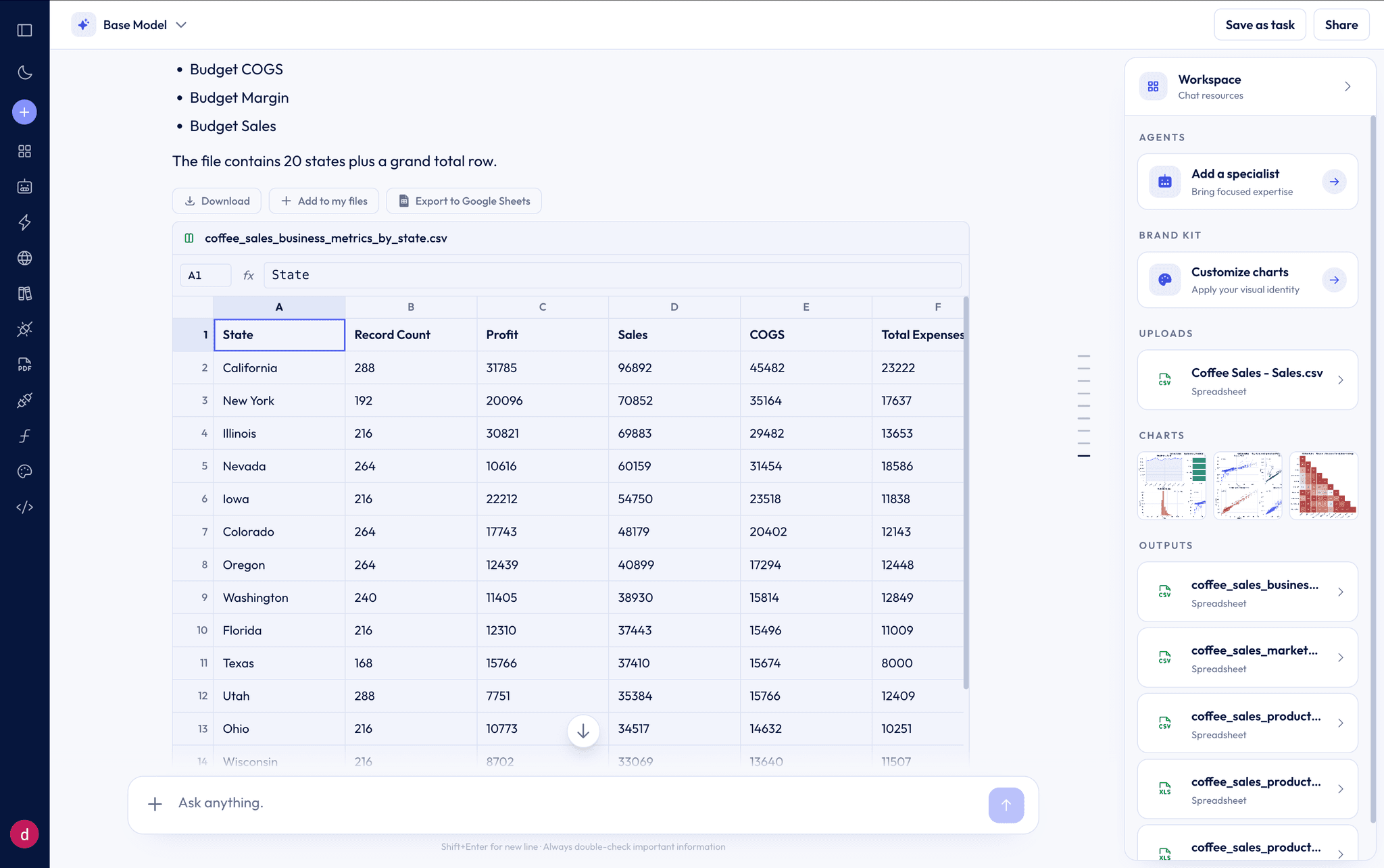
Upload a workbook and ask a question the way you would ask a colleague: “Which products drove the Q3 drop, and can you chart it?” Better Analyst reads every tab, writes and runs the analysis, and explains what it found. You can download the cleaned spreadsheet, export a chart, or turn the result into a dashboard.
It also covers the work around the spreadsheet: turning PDFs into Excel, writing Excel formulas and Google Sheets formulas, and pulling fresh data from a database or app connector so you are not re-exporting CSVs every week.
- Best for
- Analysts, operators, and finance teams who live in spreadsheets
- Pricing
- Free plan (10 messages and 25 AI Actions a month). Starter $20/mo, or $14/mo billed yearly. Max $40/seat for teams.
What we like
- Works with Excel, CSV, Google Sheets, and PDF files, with no Microsoft 365 required
- Runs Python and SQL in a secure sandbox, so numbers are calculated, not guessed
- Returns finished outputs: cleaned workbooks, interactive charts, dashboards, and slides
- Connects to PostgreSQL, MySQL, SQL Server, BigQuery, Snowflake, and Google Analytics
- Save an analysis as a task and re-run it on a schedule
Watch out for
- Works alongside Excel rather than replacing it, so heavy manual formatting still happens in Excel
- The free plan is best for trying it out; regular use needs a paid plan
Microsoft Copilot in Excel
The natural choice when your company already standardizes on Microsoft 365 and wants AI help directly inside the Excel grid.
For a deeper look at the differences, read our Better Analyst vs Microsoft Copilot comparison.
- Best for
- Companies already paying for Microsoft 365 business plans
- Pricing
- Microsoft 365 Copilot Business is $21/user/mo and the enterprise add-on is $30/user/mo, both on top of a qualifying Microsoft 365 plan.
What we like
- Lives inside Excel, so there is nothing new to learn
- Suggests formulas, highlights, and summaries on the open sheet
- Uses your existing Microsoft security and admin controls
Watch out for
- Requires a Microsoft 365 plan plus a separate Copilot license
- Works on the open workbook rather than your databases or other apps
- No built-in way to schedule a recurring analysis or publish a live dashboard
ChatGPT
A capable generalist. Upload a file and ChatGPT can run Python on it, chart it, and hand back a new spreadsheet.
- Best for
- Occasional questions about a single uploaded file
- Pricing
- Free tier available. ChatGPT Plus is $20/mo.
What we like
- Flexible: good for formulas, explanations, and quick charts
- Runs code on uploaded files instead of guessing at numbers
- Familiar chat interface many people already use
Watch out for
- Built for conversation, not spreadsheet workflows, so you re-upload files for each analysis
- Results live in a chat thread rather than a shared dashboard or workbook
Claude
Strong at reasoning through long, messy inputs and explaining its logic step by step.
- Best for
- Understanding complex workbooks and writing careful formulas
- Pricing
- Free tier available. Claude Pro is $20/mo.
What we like
- Clear, well-structured explanations of formulas and results
- Handles long documents and large pasted tables well
- Can analyze uploaded files and create spreadsheets
Watch out for
- A general-purpose assistant, so there are no spreadsheet connectors or dashboards out of the box
- Usage limits on lower tiers can interrupt longer analyses
Gemini in Google Sheets
Google’s assistant built into Sheets. Useful for summaries, formulas, and quick tables if your team already works in Google Workspace.
- Best for
- Teams that keep their spreadsheets in Google Sheets
- Pricing
- Included with many Google Workspace business plans and Google AI subscriptions.
What we like
- Built into the Sheets side panel
- Helps write formulas and generate tables from prompts
- No extra app to manage for Workspace customers
Watch out for
- Designed for Google Sheets, so Excel files need converting first
- Lighter on multi-step analysis and finished reporting
Excel Analyze Data
Excel’s built-in feature that suggests charts, pivot tables, and patterns for a clean table. Handy, but limited.
- Best for
- Quick ideas from a single, tidy table
- Pricing
- Included with Microsoft 365 subscriptions.
What we like
- Already in Excel for Microsoft 365 users
- One click to insert a suggested chart or pivot
Watch out for
- Needs a clean, single-table layout
- Suggestions only; it will not answer open-ended questions or build reports
Free AI formula generators
Describe a formula in plain English and get it back with an explanation. Perfect when one formula is all you need.
Better Analyst offers a free Excel formula library and a Google Sheets formula generator if you just need a quick formula.
- Best for
- Writing or debugging a single formula
- Pricing
- Free
What we like
- Fast, no setup, nothing to upload
- Good for learning how a function works
Watch out for
- No access to your actual data, so you check the result yourself
- One formula at a time
How to choose an AI for Excel
- Step 1Start with the outcomeDo you need one formula, an answer to a question, or a finished report? The bigger the deliverable, the more you need a dedicated analysis tool.
- Step 2Check that it calculatesPrefer tools that run real code against your data and show the formula or steps behind each number.
- Step 3Match your file typesIf you also work with CSVs, PDFs, Google Sheets, or databases, pick a tool that handles them without workarounds.
- Step 4Think about repeat workIf you rebuild the same report every week, look for saved tasks, scheduled runs, and live connectors.
- Step 5Count the full priceAdd up any required base subscriptions, not just the AI add-on.
- Step 6Try it on your own fileEvery tool on this list has a free tier or trial. Test with a real workbook before you commit.
Bring your next spreadsheet to Better Analyst
Upload an Excel file, ask a question in plain English, and get formulas, analysis, charts, and a finished workbook back.
No credit card required. Free plan included.
Frequently asked questions
Keep reading
More from the Better Analyst blog
Formula Bot vs Microsoft Copilot for Excel
A side-by-side comparison of features, pricing, data connectors, and AI capabilities. Find out which tool fits your workflow.
Read moreThe 7 Best Analytics Software Tools in 2026
Compare the best analytics software for small teams and growing businesses: AI analysis, dashboards, connectors, automation, and real costs.
Read moreThe 7 Best Data Visualization Tools in 2026
A practical comparison of data visualization tools, from AI chart makers to enterprise BI, with pricing, strengths, and who each one is for.
Read more