Member Attributes
Give each team member values like region or client, then use them in a team data source's Data Controls so each person sees only their own rows, tables, and columns.
Member attributes are fields like region, client, or department that you set for each person on your team. On their own they do nothing. They take effect when a team data source's Data Controls use them, in a row filter or a Who can see this limit. Then each person sees only the rows, tables, and columns that match their own values.
Team Owners and Admins manage attributes. Member attributes are included with the Business plan and with custom contracts.
How it works
Setup takes three steps in two places. Team settings → Members holds the fields and each person's values. Each data source's Data Controls page holds the rules that use them.
| Step | Where | What you do |
|---|---|---|
| 1. Add a field | Team settings → Members | Create a field such as Region |
| 2. Set each member's values | Team settings → Members | Give each person their values, such as West |
| 3. Use the field | A team data source's Data Controls | Add a row filter with Compare with: Member's Region, or limit a table or column with Who can see this |
Then use Preview as member on the data source to check what one person would see.
The Member attributes card at the top of Team settings → Members tracks these steps. It shows how many members have values and which data sources use each field.
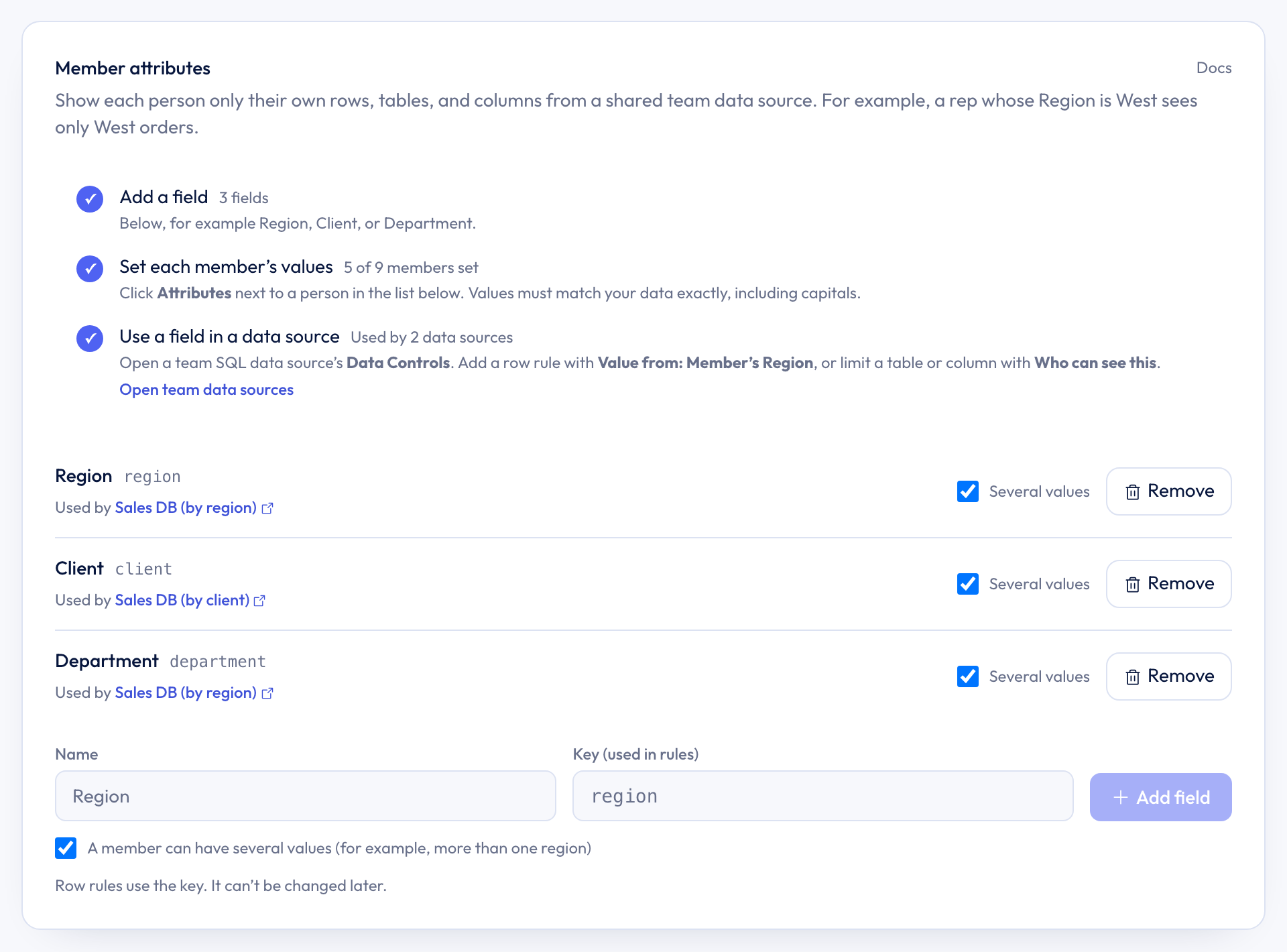
Step 1: Add a field
- Open Team settings → Members.
- In the Member attributes card, type a name, such as
Region. - Check the Key (used in rules). It's filled in from the name (
region) and can be edited before you add the field. Keys use lowercase letters, numbers, and underscores, and start with a letter. Rules refer to the key, so it can't be changed later. - Choose whether a member can have several values (for example, someone who covers two regions).
- Click Add field.
You can switch a field between one value and several values later. A field can't become single-value while any member has more than one value for it.
Step 2: Set each member's values
Once a field exists, each person in the member list gets an Attributes button, and the list shows the values they have. Anyone without values shows No attributes set.
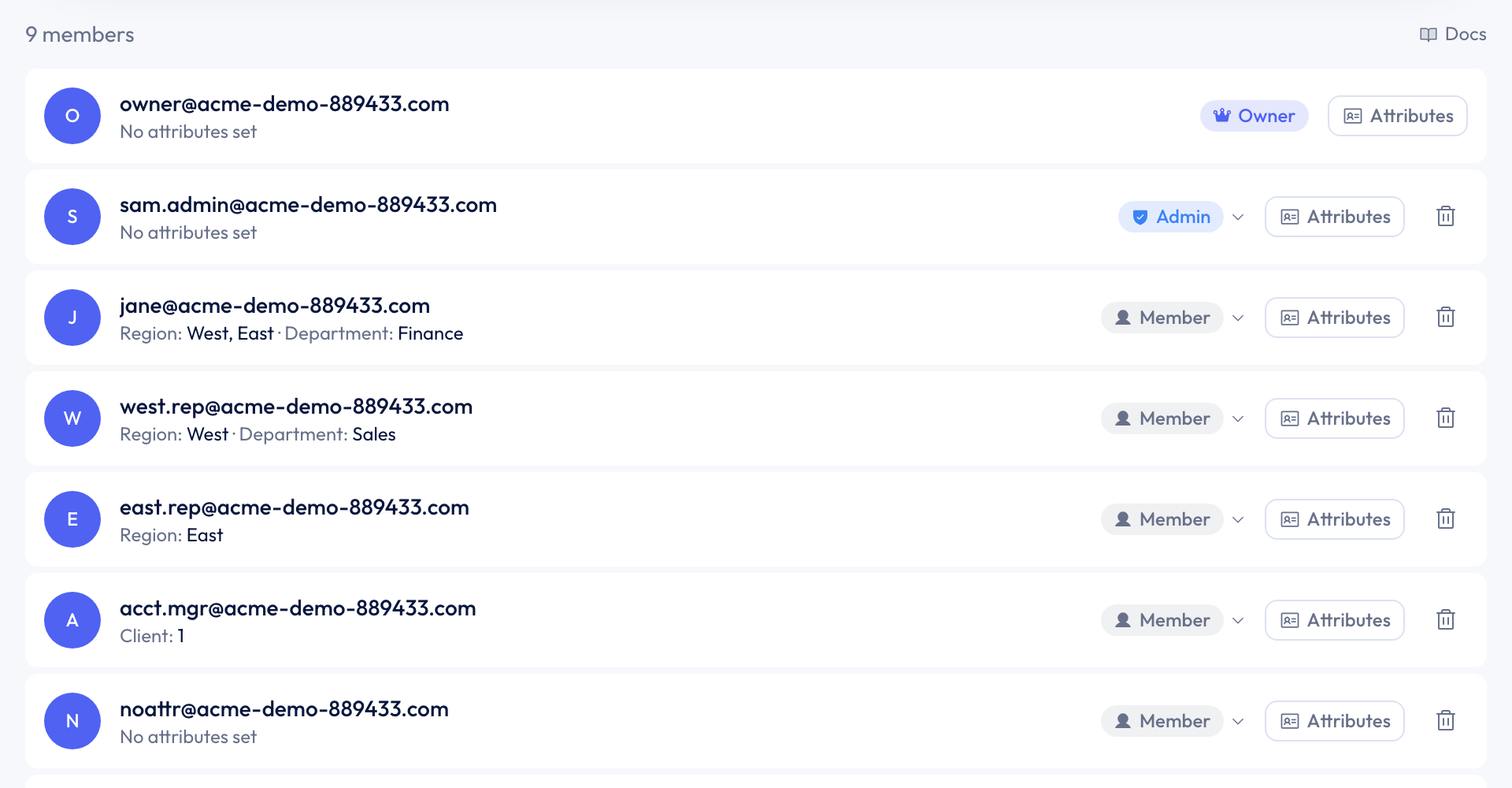
- Click Attributes next to the person. This opens Attributes for that person.
- For a one-value field, type the value. For a field with several values, type a value and press Enter, then add as many as you need. Commas are kept as part of a value, so
Acme, Inc.is one value. - Click Save.
Under each field, the panel shows which data sources use it, or Not used by a data source yet.
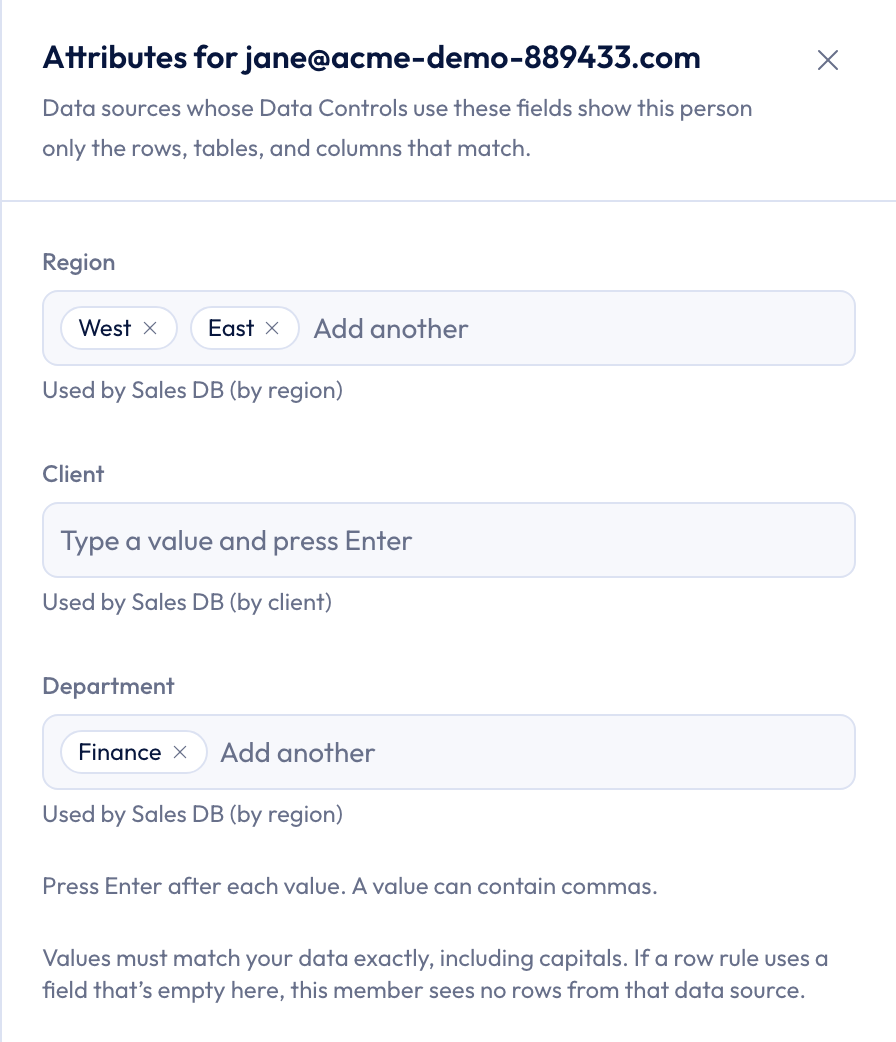
Values must match your data exactly, including capitals. If your data says West, a member whose region is west sees no rows.
Values set by your identity provider are shown as Set by your identity provider and can only be changed there.
If a rule uses a field that's empty for someone, that person sees no rows from that data source. Nothing is shown unfiltered.
Step 3: Use the field in a data source
Fields only take effect on a team SQL data source that uses them. Click a data source's name next to a field to open its Data Controls. To find others, click Open team data sources in the card, or go to Library → Connectors, click the settings icon on the data source, and choose Data Controls.
The Set up per-member access checklist at the top of Data Controls repeats the same steps. Its first step lists your fields and how many members have values.
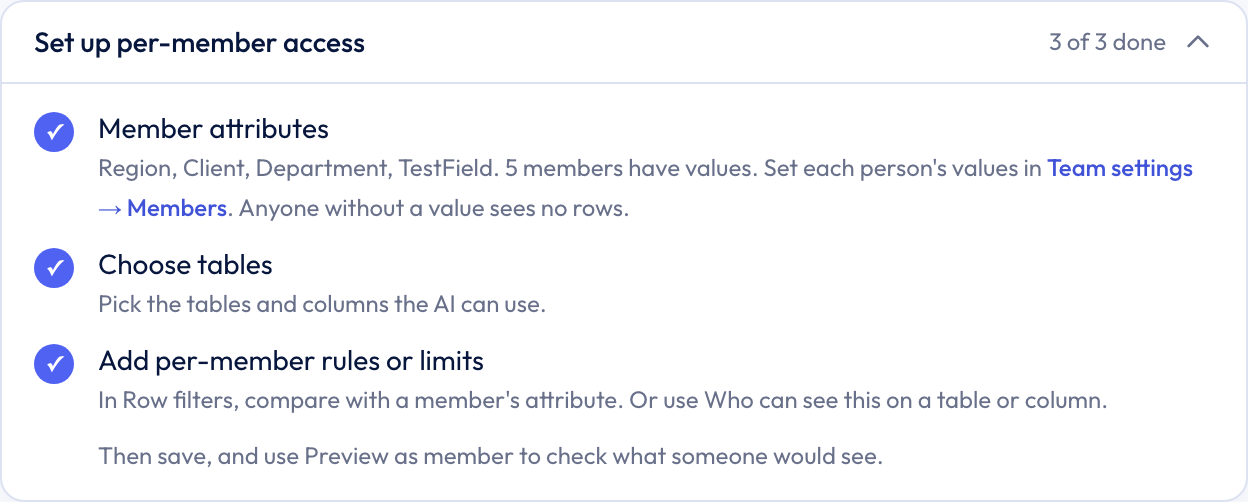
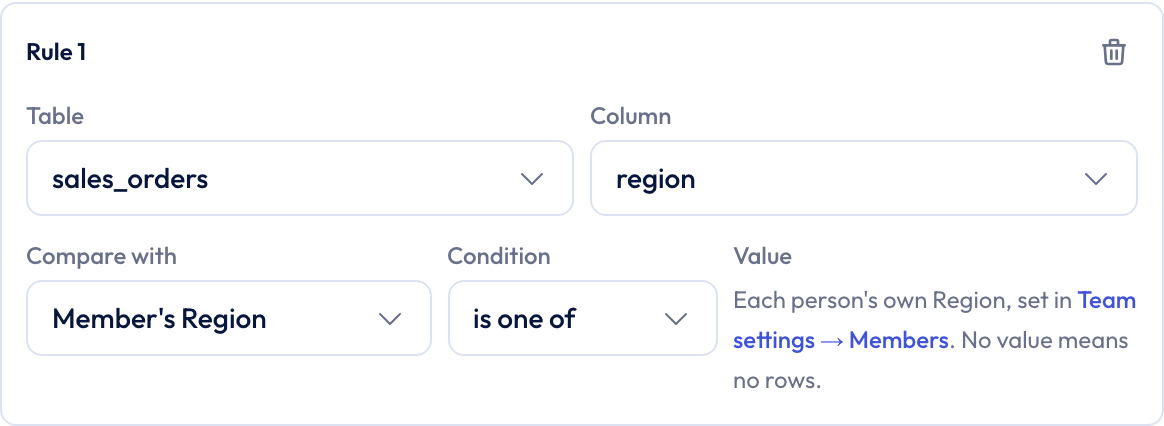
To show each person only their own rows, add a row filter on the column that holds the value. Under Compare with, choose Member's Region. There's nothing to type. The note next to it says the value comes from Team settings → Members.
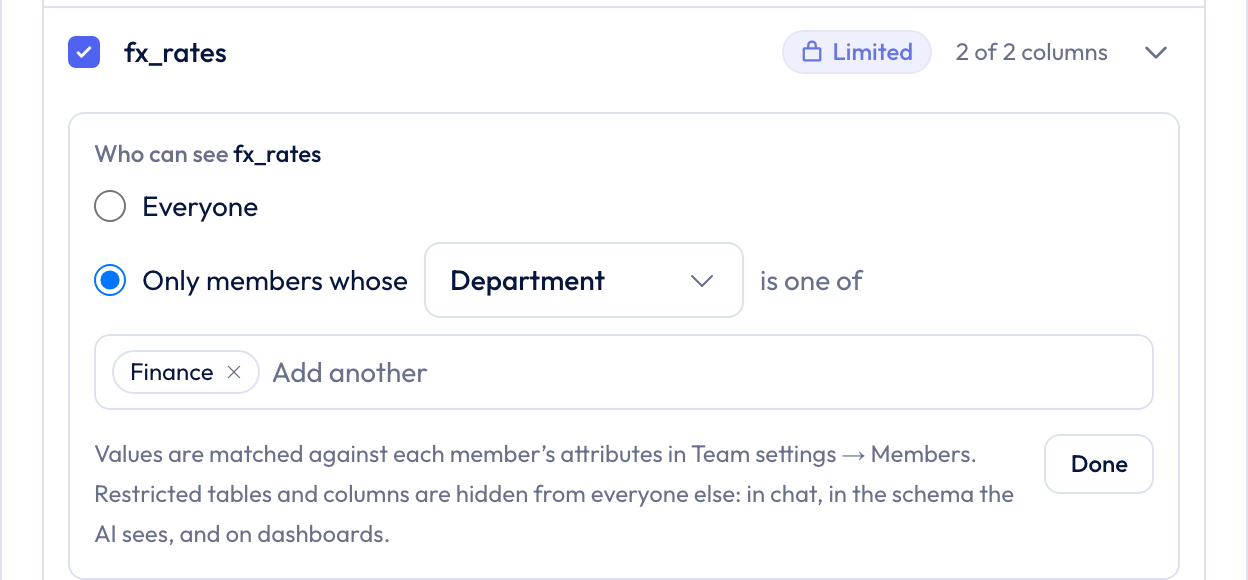
To keep a whole table or column for some people, click Who can see this next to it and choose Only members whose, an attribute, and the values that may see it. Limit columns that can be worked out from it too, such as margin when profit is limited.
See Data Access for every option, including Who sees everything for owners and admins.
Check with Preview as member
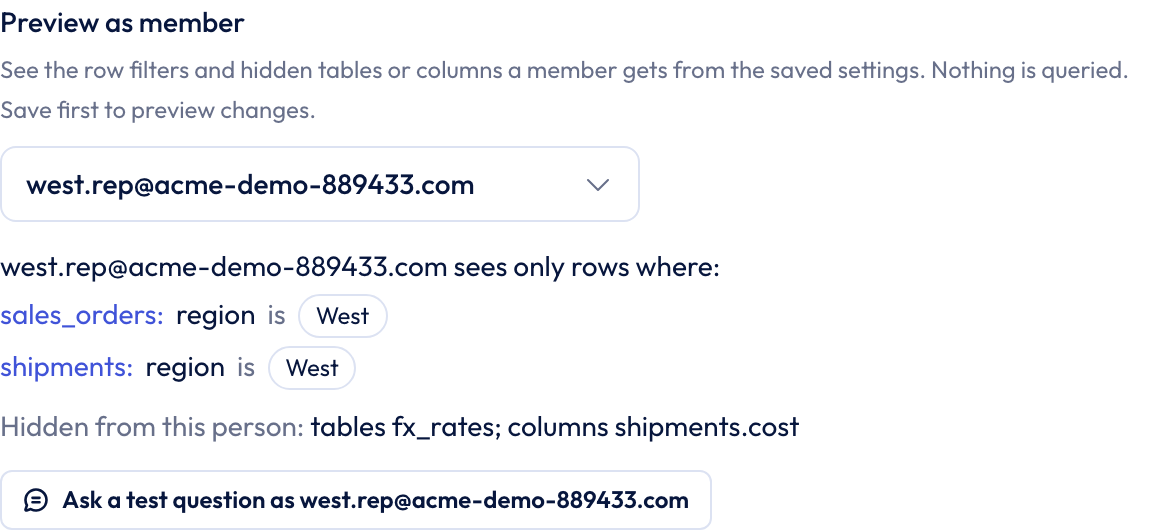
Save the data source, then pick a person under Preview as member. It shows the row filters they'd get, filled in with their values, and any tables or columns hidden from them. If someone would see nothing, it names the missing attribute.
Remove a field
Click Remove, then click again to confirm. Removing a field deletes every member's values for it. If a data source's rules or limits use the field, you'll be asked to change those in Data Controls first.
What members see
Members can see their own attributes on the Members tab. They can't see anyone else's, and they can't change their own.
Access managers can see the list of attribute fields, so they can write rules with them, but not anyone's values. Their Preview as member shows how many values a rule uses, not the values themselves.
Audit log
Adding, changing, or removing fields and changing a member's values are recorded in the team audit log. The log records which fields changed and how many values were set, never the values themselves.
Troubleshooting
Someone sees no rows
- Check their row in Team settings → Members. No attributes set means the rules have nothing to match.
- Check the values match your data exactly, including capitals.
- Use Preview as member on the data source. It names the missing attribute.
A field says "Not used by a data source yet"
Nobody's values for that field affect anything yet. Open a team data source's Data Controls and add a row filter with Compare with set to that field, or a Who can see this limit.