Set up per-member data access
Step-by-step guide to showing each team member only their own rows, tables, and columns from a shared SQL data source, using member attributes, row filters, limits, and access managers.
Use this guide when several people share one database connection, but each of them should see only part of it. For example, a sales team where each rep sees only their region, or an agency where each account manager sees only their clients.
You set it up once per data source. After that, every chat, dashboard, and query from that source is filtered for the person asking.
This guide walks through the whole setup. For the details of each setting, see Data Access and Member attributes.
What it looks like
Here, two reps ask the same question of the same data source. The West rep's Region is West; Jane covers West and East. Each gets only their own regions, because a row filter compares sales_orders.region with the Region of whoever is asking.
Tables and columns can be limited too. shipments.cost and fx_rates are limited to the Finance department, so for a sales rep the AI isn't told they exist:
To hide a whole client's chats, dashboards, and tasks from people who don't work on it, rather than rows in a shared source, use private projects. A private project can also keep a data source to itself.
Before you start
You need:
- The Business plan (or a custom contract).
- To be a team Owner or Admin. Once it's set up, an owner or admin can name access managers to look after one data source.
- A SQL data source in the team workspace: BigQuery, Snowflake, Supabase, MySQL, PostgreSQL, or MSSQL. Personal data sources can't have per-member rules.
It happens in two places:
- Team settings → Members: the attribute fields, and each person's values.
- The data source's Data Controls: which tables to use, and the filters and limits that read each person's values.
Both pages track your progress. The Member attributes card at the top of the Members tab shows how many members have values and which data sources use each field. On the Data access page, the Set up per-member access checklist tracks Member attributes, Choose tables, and Add per-member rules or limits.
Step 1: Add member attributes
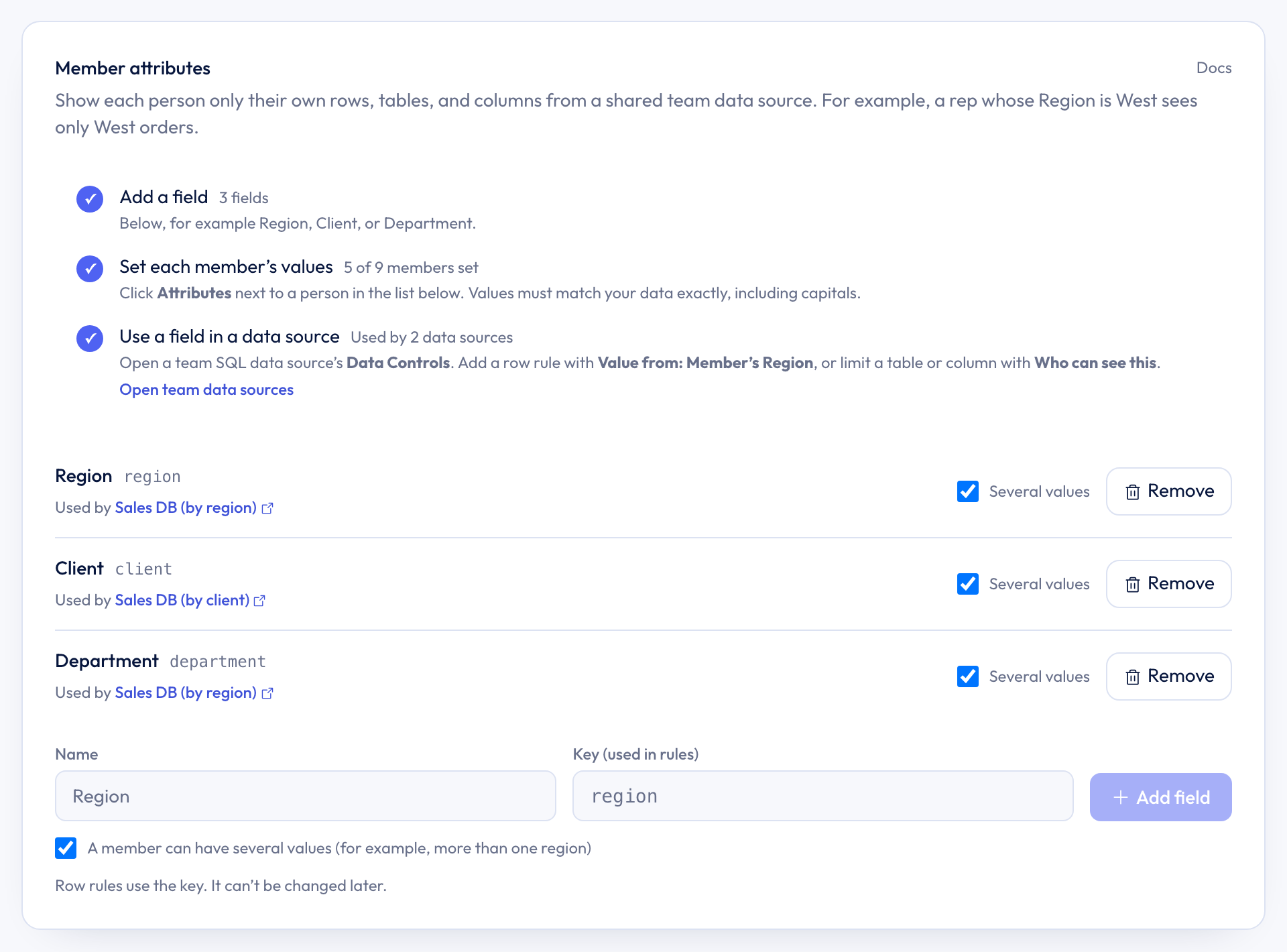
Member attributes are fields like Region, Client, or Department that you set for each person. Rules use them to decide what each person sees.
You can add attributes before or after you connect the data source. Either order works. But you need at least one attribute before you can add a per-member rule or limit, since the rule has to point at one.
- Open Team settings → Members. The Member attributes card is at the top.
- Type a name, such as
Region, and check the key. - Choose whether a member can have several values, for example someone who covers two regions.
- Click Add field.
Then set each person's values:
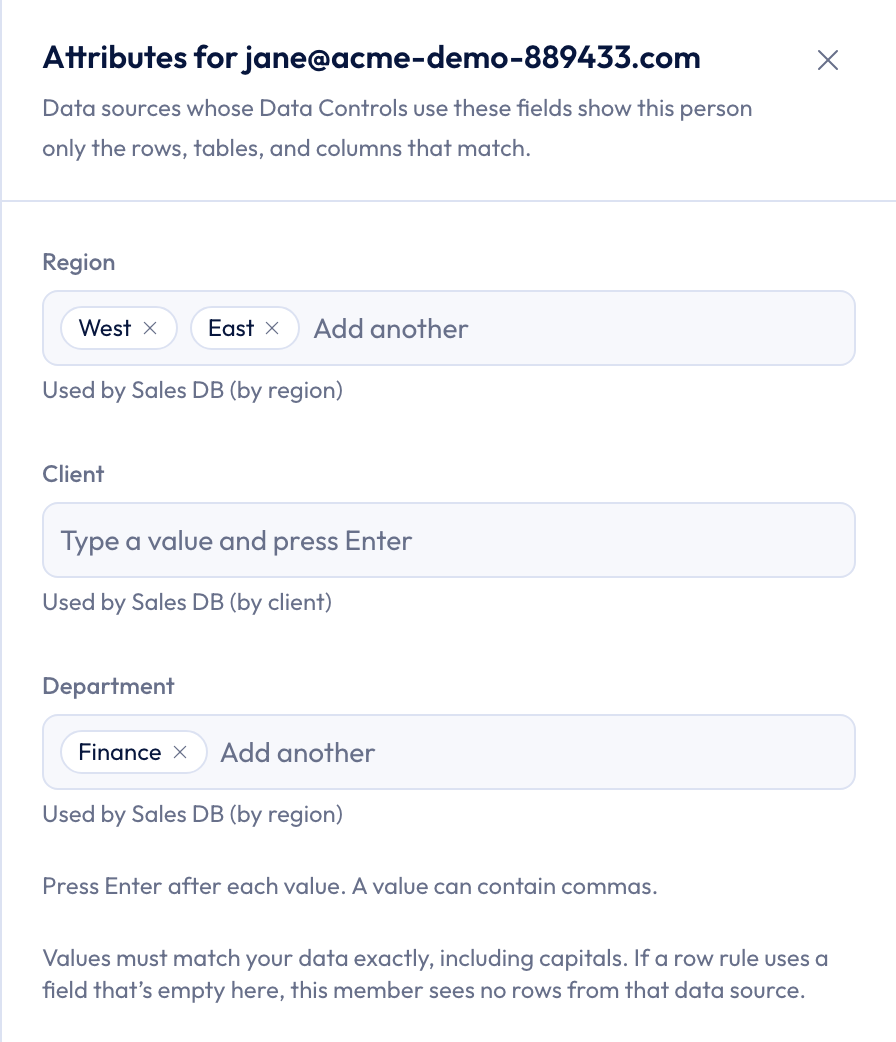
- In the member list below the card, click Attributes next to the person. The button appears once a field exists.
- Type each value. For a field with several values, press Enter after each one.
- Click Save.
The member list shows each person's values under their email, and No attributes set for anyone still missing them.
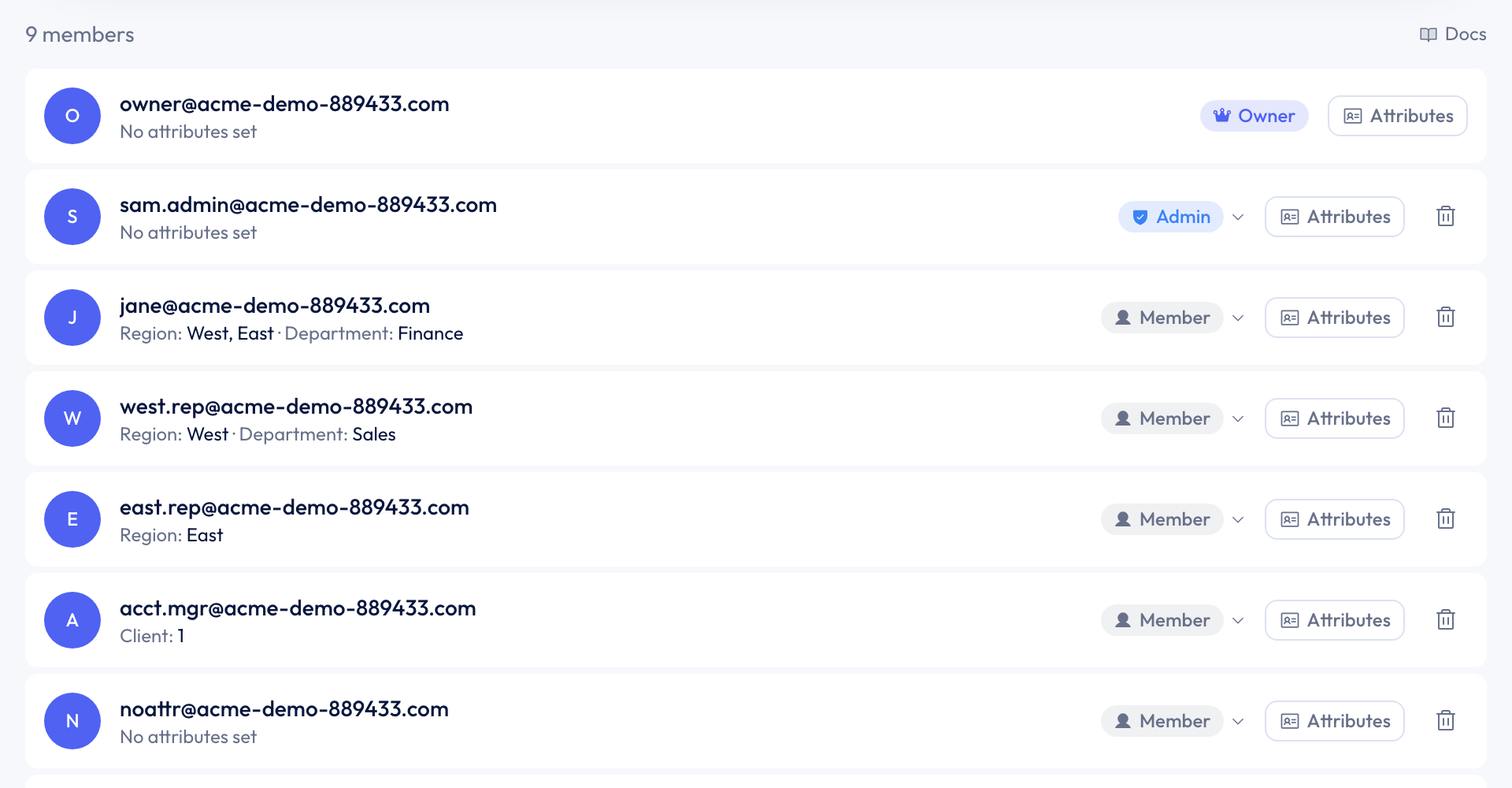
Values must match your data exactly, including capitals. If your table says West, a value of west matches nothing.
For now, you set values in Team settings. Values will also be able to come from your identity provider later. Values set that way show as Set by your identity provider and can only be changed there.
Step 2: Connect the data source as a team source
Per-member rules only work on data sources in the team workspace.
- Use the workspace switcher at the top of the sidebar to switch to your team.
- Connect the database as usual. See Connectors.
If the team already has this data source connected, use that one. You don't need to connect it again.
Step 3: Open Data Access
There are three ways in:
- Right after you connect the source, choose Manage Data Access on the success screen.
- In Library, open the Connectors tab, click the settings icon on the data source, and choose Data Controls.
- In a chat, open Add / manage data, click the settings icon on the data source, and choose Data Controls.
Each opens the Data access page for that data source.
Step 4: Choose tables
- Choose Only what I choose.
- Under Tables and columns, tick the tables. Expand a table with the arrow on the right to choose its columns.
- Leave out anything nobody on the team should see.
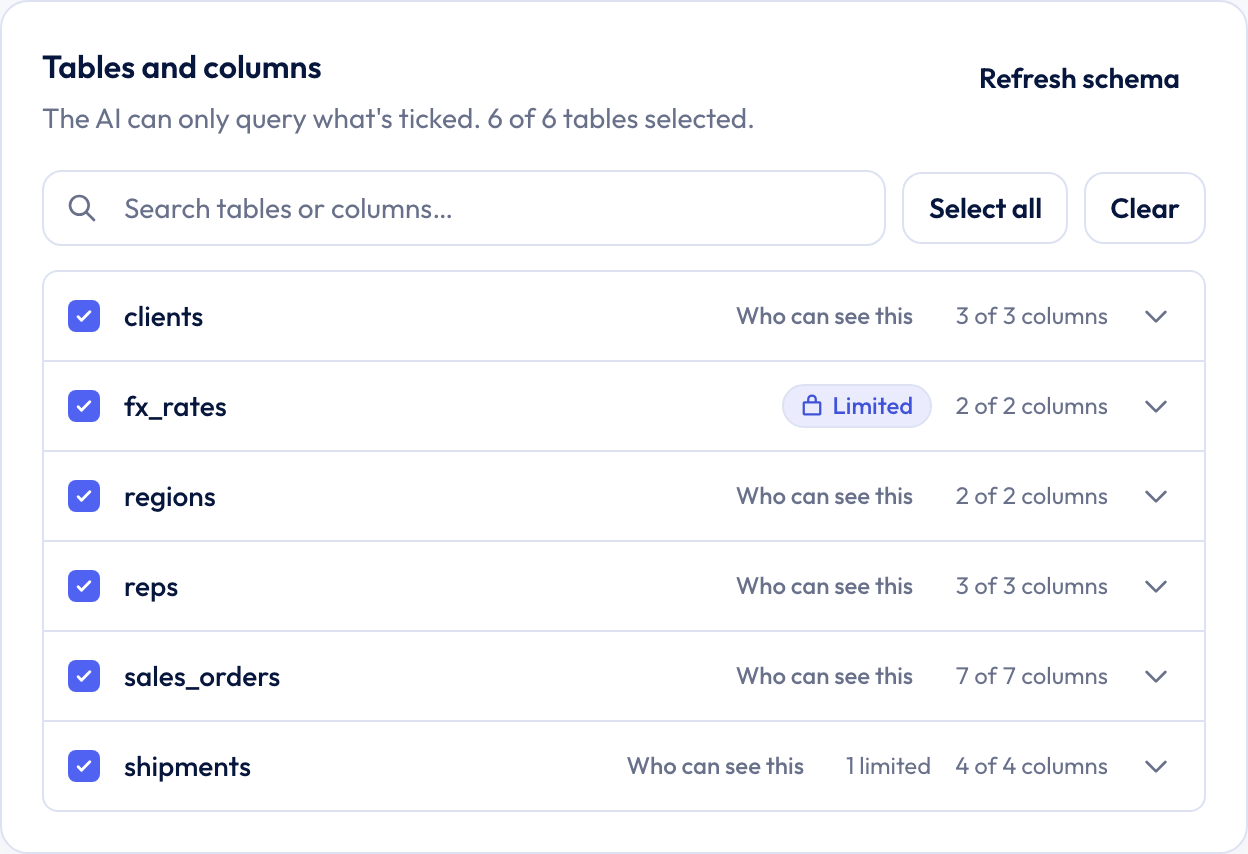
Per-member filters and limits only ever narrow this list. Nobody sees a table or column you didn't tick here.
Step 5: Show each member their own rows
Add a row filter that takes its value from the person asking.
- Under Row filters, turn on Filter specific tables. Or, if every table has the same kind of ID column, turn on Filter every table by the same ID.
- Choose the Table and the Column that holds the value, for example
sales_orders.region. - Under Compare with, choose Member's Region. There's nothing to type. The note next to the rule says the value comes from Team settings → Members.
- Choose the condition is, or is one of if members can have several values.
- Click Add rule for each other table that has the column.
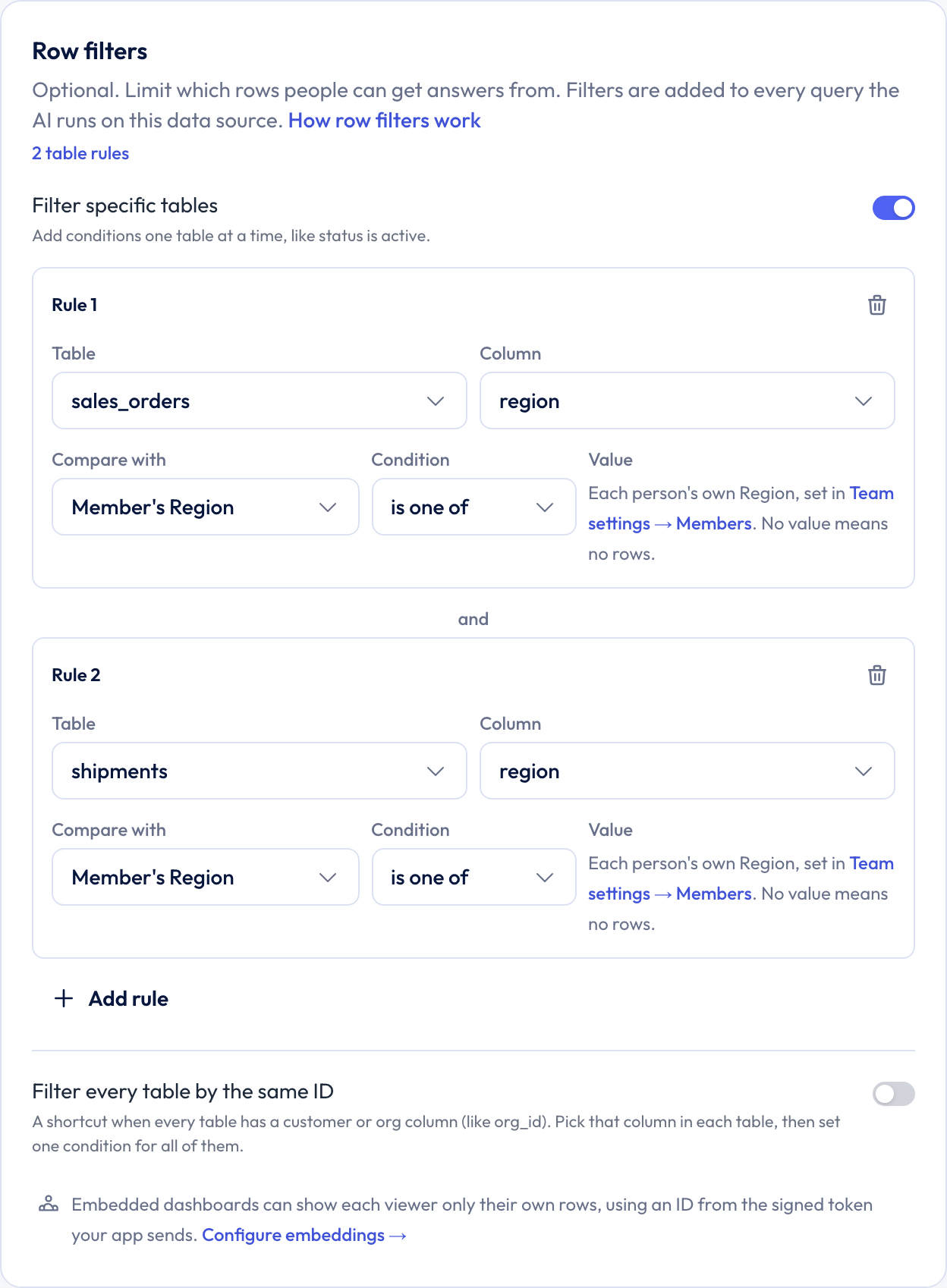
Now a member whose Region is West sees only West rows. A member who covers West and East sees both.
Compare with also offers Fixed value, which applies the same value to everyone, and Embed viewer's ID, which is for embedded dashboards. A data source can't mix per-member filters with embed viewer filters.
Step 6: Limit tables and columns
Use this when a whole table or column is only for some people, for example salaries for HR, or orders.margin for two regions.
- Next to a ticked table, or a column, click Who can see this.
- Choose Only members whose, pick the attribute, and type each value that may see it. Press Enter after each one.
- Click Done.
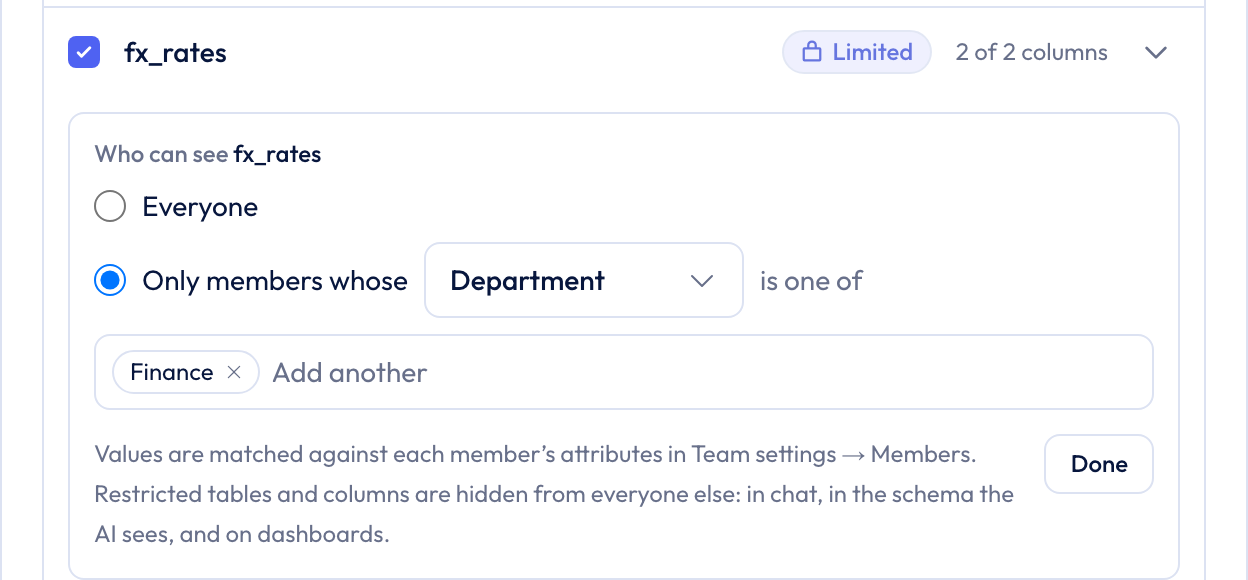
The table or column now shows a Limited badge. Leave it on Everyone to keep it visible to the whole team.
For people outside a limit, the table or column is hidden everywhere. The AI isn't told it exists.
Step 7: Choose who sees everything
Who sees everything decides whether owners and admins skip the per-member filters and limits:
- No one (owners and admins are limited too)
- Owners see everything
- Owners and admins see everything
It's in the Per-member access section, which appears once you add a row filter or a limit. Fixed-value filters still apply to everyone.
Only owners and admins can change this setting.
Step 8: Preview and save
Before you save, check what one person would get.
- Click Save first. The preview shows saved settings.
- In Per-member access, under Preview as member, pick a team member.
- Read the filters they get, for example
sales_orders: region is West, and any tables or columns hidden from them. - If they'd see nothing, the preview says which attribute is missing.
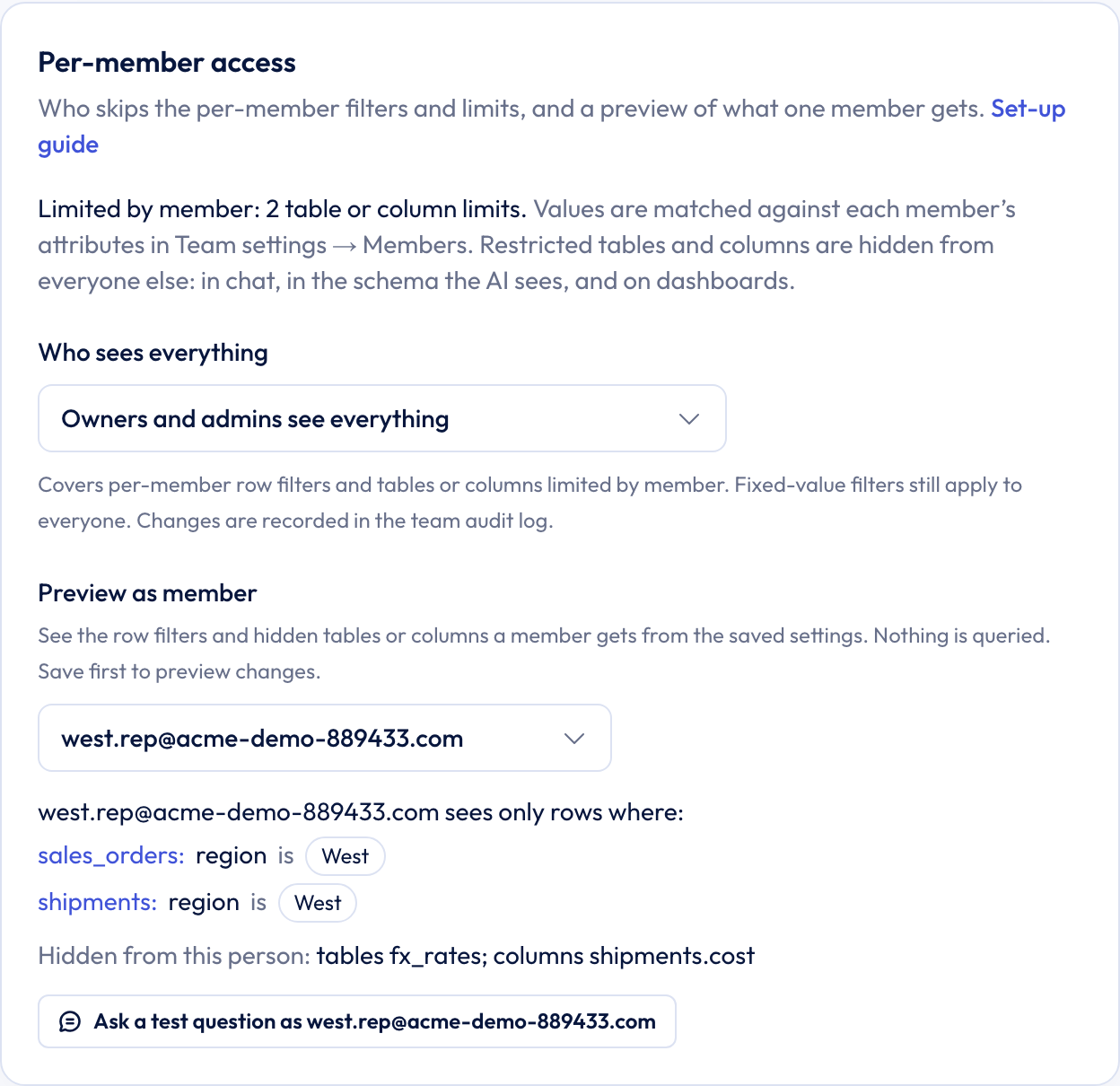
The preview runs no query. It's recorded in the audit log with the member's name, never their values.
When you click Save for the first time on a data source with per-member filters or limits, a confirmation opens. It lists the dashboards, scheduled tasks, Data Flows, and team chats that use this source, and explains what changes:
- Newer dashboards show each viewer their own numbers. Their public links and schedules turn off.
- Older dashboards stop showing data until they're rebuilt.
- Scheduled tasks and Data Flows that use the source pause.
Click Turn on and save to continue, or Cancel to go back.
Turning the rules off later doesn't bring public links or schedules back. Turn them on again yourself.
Step 9 (optional): Name access managers
Access managers are team members who look after one data source's access rules without being team admins. For example, a data lead who knows which tables each region needs.
- At the bottom of the Data access page, find Who can manage access.
- Choose a team member and click Add. It's saved straight away.
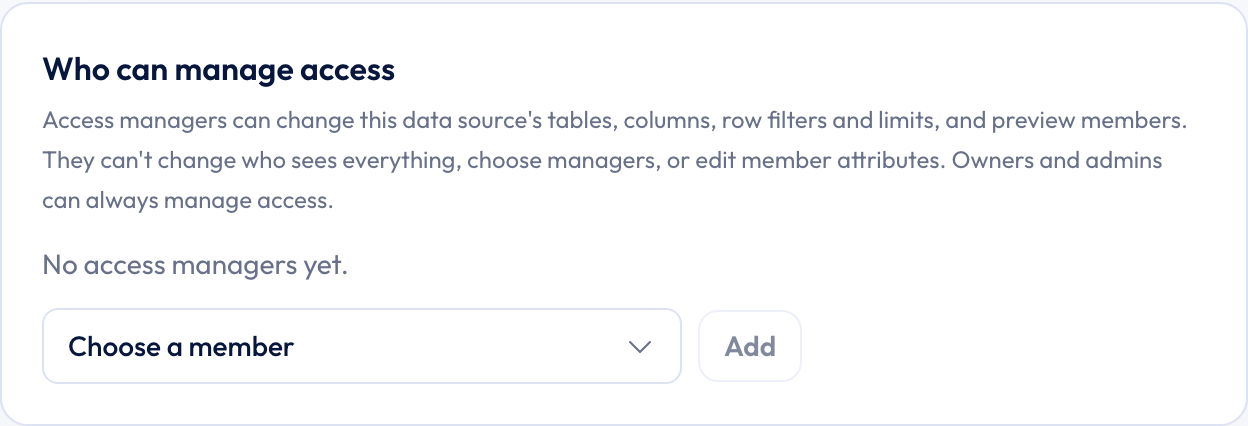
Access managers can:
- Choose tables and columns.
- Add and change row filters.
- Limit tables and columns with Who can see this.
- Use Preview as member.
They can't change Who sees everything, choose access managers, or edit member attributes. Only owners and admins can.
Changes to access managers are recorded in the audit log as Changed who manages access to a data source.
Turning it on for a source people already use
If the team already uses this data source, check these before you save:
- Every member who uses the source has the attributes your rules need. Anyone with an empty attribute sees no rows.
- Values match the data exactly, including capitals.
- You previewed at least one member from each group, and one owner or admin.
- You've read the confirmation's list of dashboards, tasks, and Data Flows.
- Owners of public dashboards and scheduled reports know their links and schedules will turn off.
- Owners of scheduled tasks and Data Flows know they'll pause.
- Older dashboards on this source are flagged for a rebuild.
- People who use the source in team chats know to start a new chat.
- Views on this source that read a table with a per-member rule have their own rule, or are left out. Queries on them are refused otherwise.
- Copies of a protected table have their own rule, or are left out.
- Columns that can be worked out from a limited column (like
marginfromprofit) have the same limit.
What members see
- Chats: each person gets results filtered to their own rows, and the AI describes totals as theirs rather than company-wide. A team chat that used the source becomes a private chat for the person who started it. Anyone else starts a new chat.
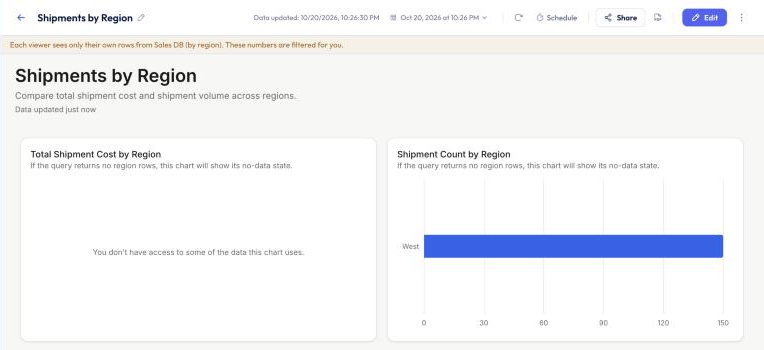
- Dashboards: each viewer sees their own numbers. This works for Viewers too: people who only need to look at their numbers can join the team for free as Viewers instead of Members. See Per-viewer dashboards. A chart that needs a table or column hidden from the viewer shows a no-access card instead. The rest of the dashboard still loads.
- Data Context and Knowledge Base: someone with a table or column hidden from them doesn't get this source's published Data Context, Knowledge Base documents, or SQL feedback, since those can name what's hidden.
- Slack: can't query a per-member data source.
- Their own attributes: members can see their own values on the Members tab. They can't see anyone else's, and they can't change their own.
If someone's attribute is empty, they see no rows. Nothing is ever shown unfiltered.
View as a member
Preview as member lists a person's filters without running anything. To see the actual numbers a member gets, an Owner or Admin can view a dashboard as them, or ask a test question as them in chat.
Who can. Owners and Admins, on the Business plan, who already see everything on the data source: its Who sees everything setting has to include their role (for example Owners see everything). Viewing as someone can then only show you less than you already see. If the setting doesn't include your role, the option is shown turned off, with the reason.
On a dashboard
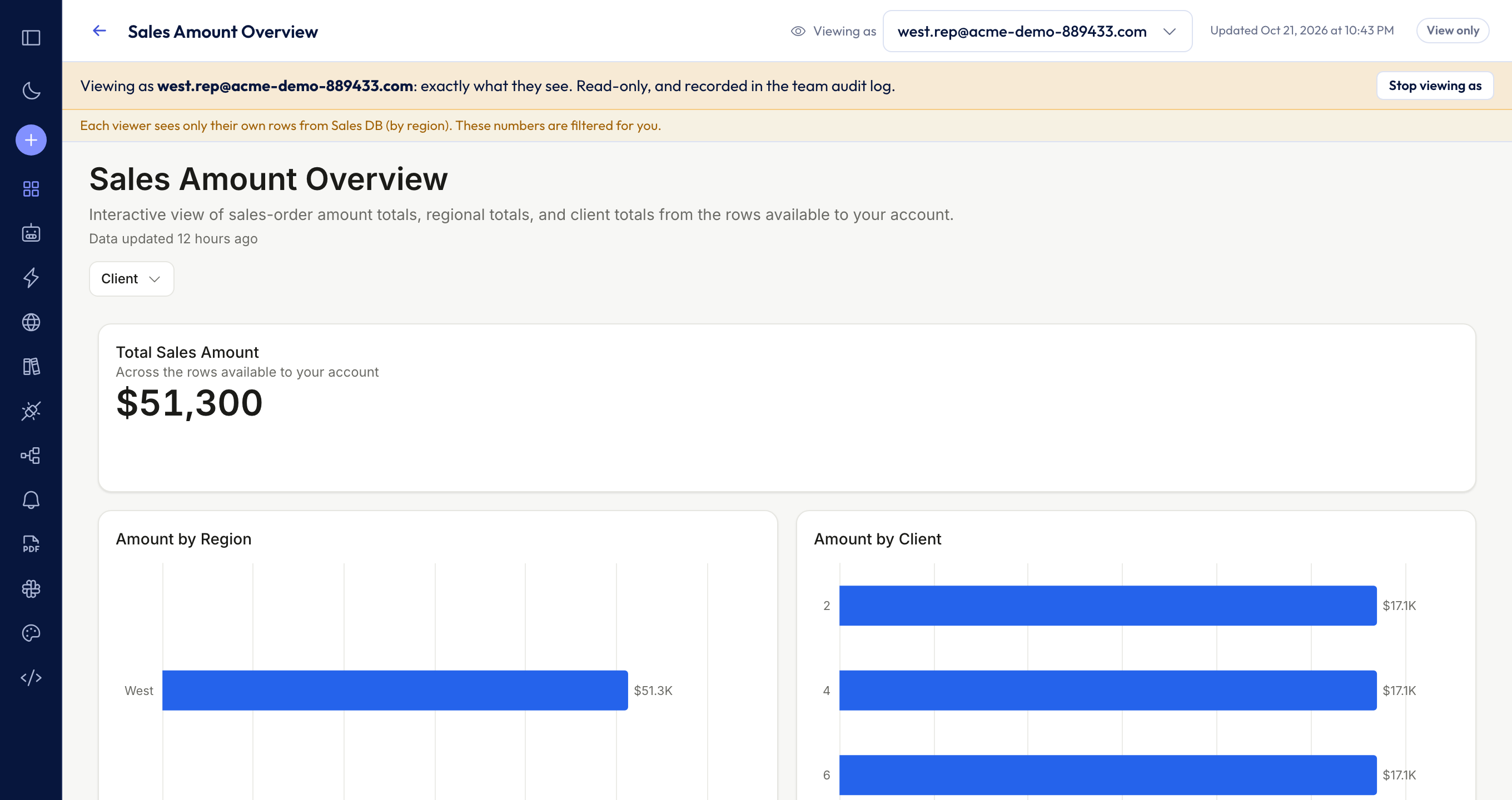
On a per-viewer dashboard, use Viewing as in the header and pick a team member. The dashboard reloads with their numbers, and their no-access cards, exactly as they'd see it. A banner shows who you're viewing as. While it's on, the dashboard is read-only: you can't edit, share, schedule, or download it. Click Stop viewing as to go back to your own view.
In chat
In Data Access for the source, pick a member under Preview as member, then click Ask a test question as them. A new chat opens with that source attached and a Testing as banner. Its answers use the member's rows, tables, and columns.
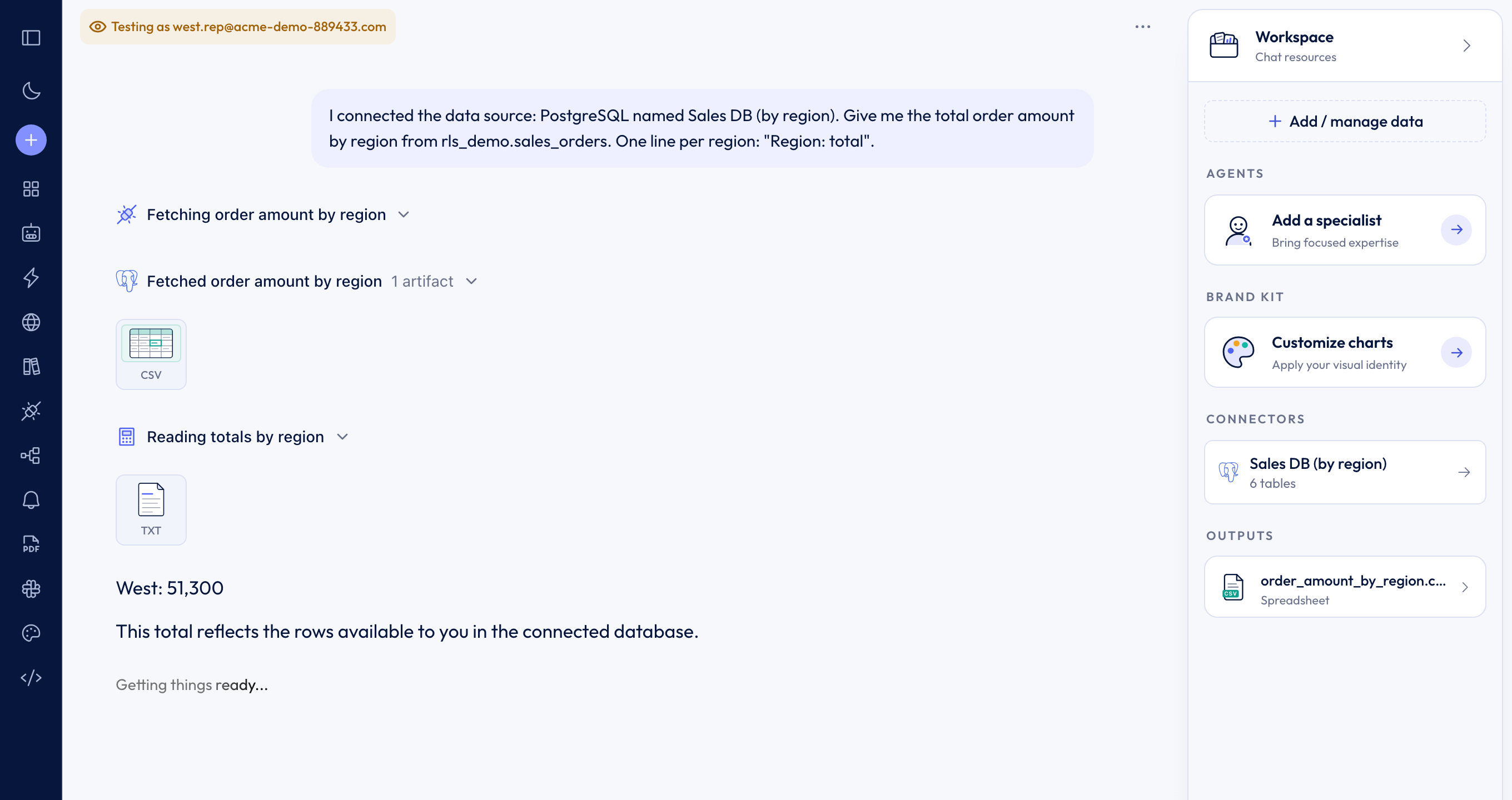
A test chat:
- is private to you. The member doesn't see it, and it can't be shared or made public.
- can only use per-member data sources. Files, API datasets, and Custom APIs would answer with your own access, so they can't be added.
- checks again on every question. If the member leaves the team or the source's Who sees everything setting changes, its next question is refused.
Members' own chats are never opened. Viewing a dashboard as someone and starting a test chat are both recorded in the team audit log. The member isn't notified.
Troubleshooting
Someone sees nothing
They're probably missing an attribute your rules use.
- Use Preview as member on them. It names the missing attribute.
- Find them in Team settings → Members. No attributes set under their email means they have no values. Click Attributes to set them.
- Check the value matches your data exactly, including capitals.
A table or column is missing for someone
- Check for a Limited badge on it. If it's limited, add their value under Who can see this, or set it back to Everyone.
- Check it's ticked under Tables and columns. Nobody sees a table or column that isn't ticked.
- Use Preview as member to see what's hidden from them.
You can't save
- Only team owners, admins, and this source's access managers can change its access rules.
- Access managers can't change Who sees everything, access managers, or member attributes. Ask an owner or admin.
- Per-member rules and limits need the Business plan and a team data source.