Comments and who's here
See which teammates are in a team chat, dashboard, or story, comment on answers, charts, and chapters, and @mention people. Team plan.
In the team workspace, chats, dashboards, and stories show your teammates' work as theirs. You can see who else is looking, talk about a result without asking the AI, and pull someone in with an @mention.
Only your team sees comments. The AI never reads them, so a comment never changes an answer or starts a run.
Before you start
You need:
- The Team or Enterprise plan.
- A chat, dashboard, or story in the team workspace. Personal items have no comments.
See who's working with you
- Who's here: avatars at the top of a team chat, dashboard, or story show the teammates who have it open right now. They leave when the teammate closes it.
- Who asked: in a team chat, a teammate's message shows their name above it. Your own messages don't.
- Who's running a step: while a teammate's question is running, a line above the message box names them. You can add to their question or wait for it to finish.
Comment on an answer in a chat
- Under an answer, click the comment icon next to copy and the thumbs.
- Type your comment and press Enter (or click Post). Shift+Enter adds a new line.
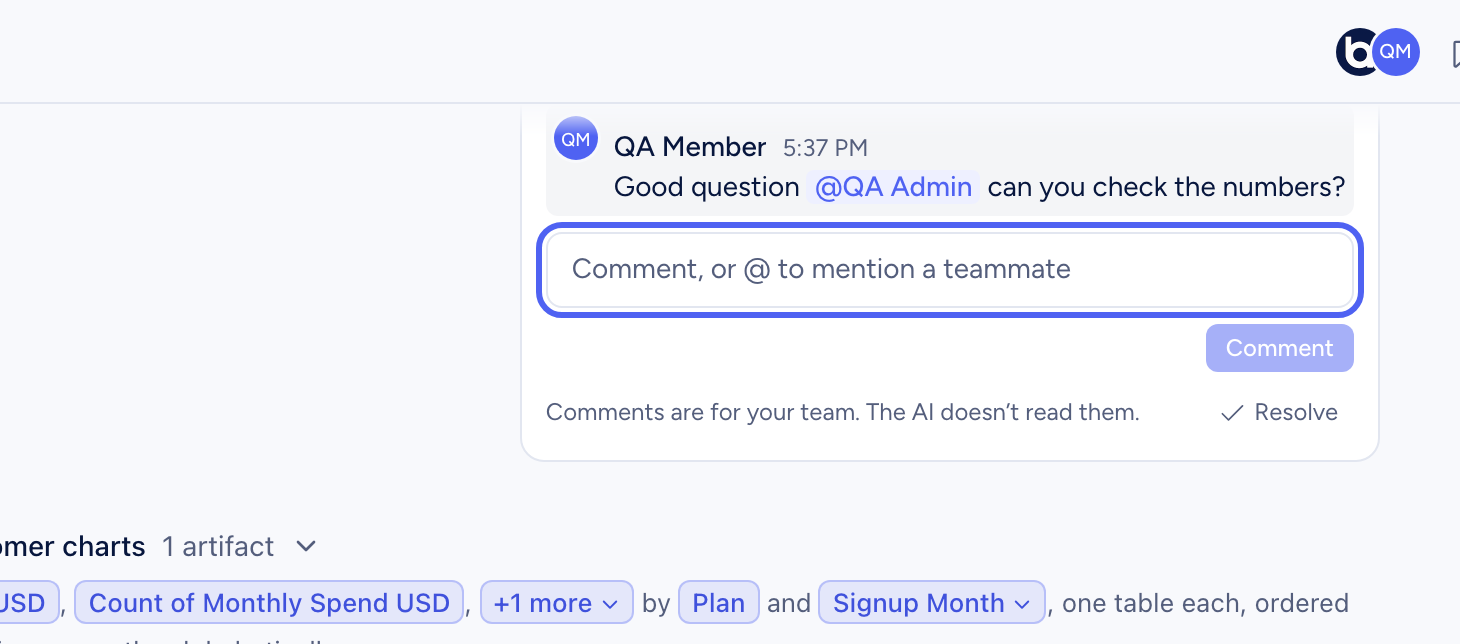
The icon shows how many open comments an answer has. The comments button at the top of the chat lists every conversation in it; choose one to jump to its answer.
Comment on a dashboard or story
- A chart or card: hover it and click the comment icon at the end of its icons.
- A story chapter: hover the chapter and click Comment beside its heading.
- The whole dashboard or story: click the comments button at the top, then Comment on the whole dashboard (or story).
The conversation opens in a panel on the right.
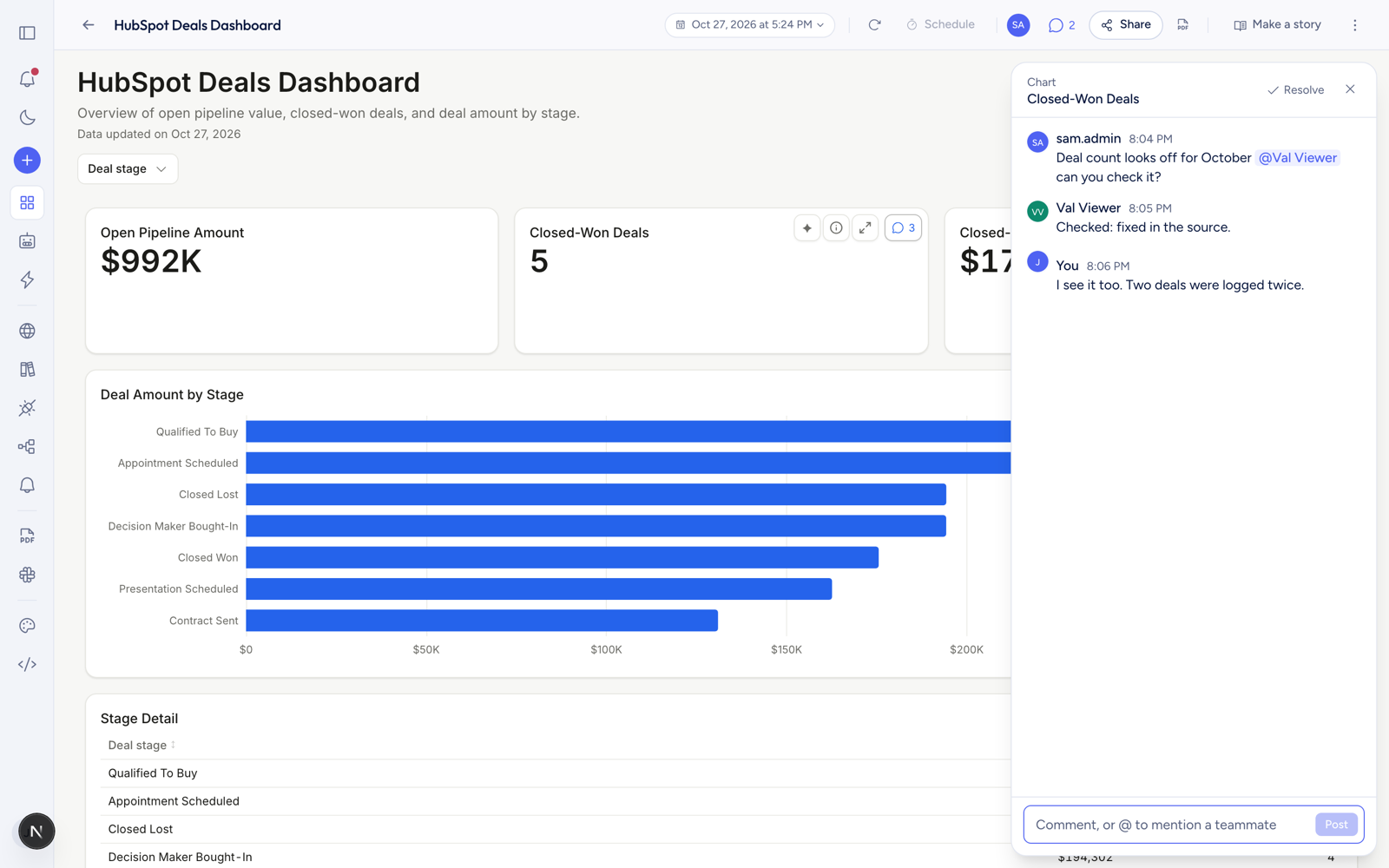
A chart or chapter with open comments shows the count all the time, so you can spot them while reading. One with none, or with only resolved ones, looks as it would without comments.
The comments button at the top lists every open conversation, then the resolved ones.
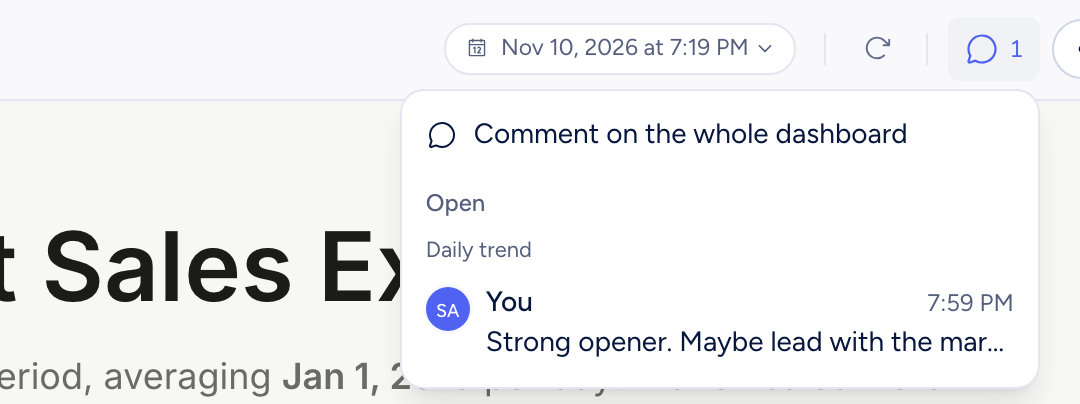
Dashboards built as code have only the whole-dashboard conversation.
Mention a teammate
Type @ and start typing a name, then pick the person with the arrow keys and Enter (or click them). Their name turns blue in the box; only names picked from the list notify anyone.

The person gets a notice in the inbox bell and an email, both linking straight to the comment. To stop the emails, turn off Mentions under Settings > Email Preferences. The inbox notice still comes.
Resolve and reopen
When a conversation is done, click Resolve. It closes, and the answer, chart, or chapter goes back to looking as it did before anyone commented.
Resolved conversations are kept. Open the same answer, chart, or chapter and click Show resolved threads, or pick one under Resolved in the comments list. Click Reopen to bring one back.
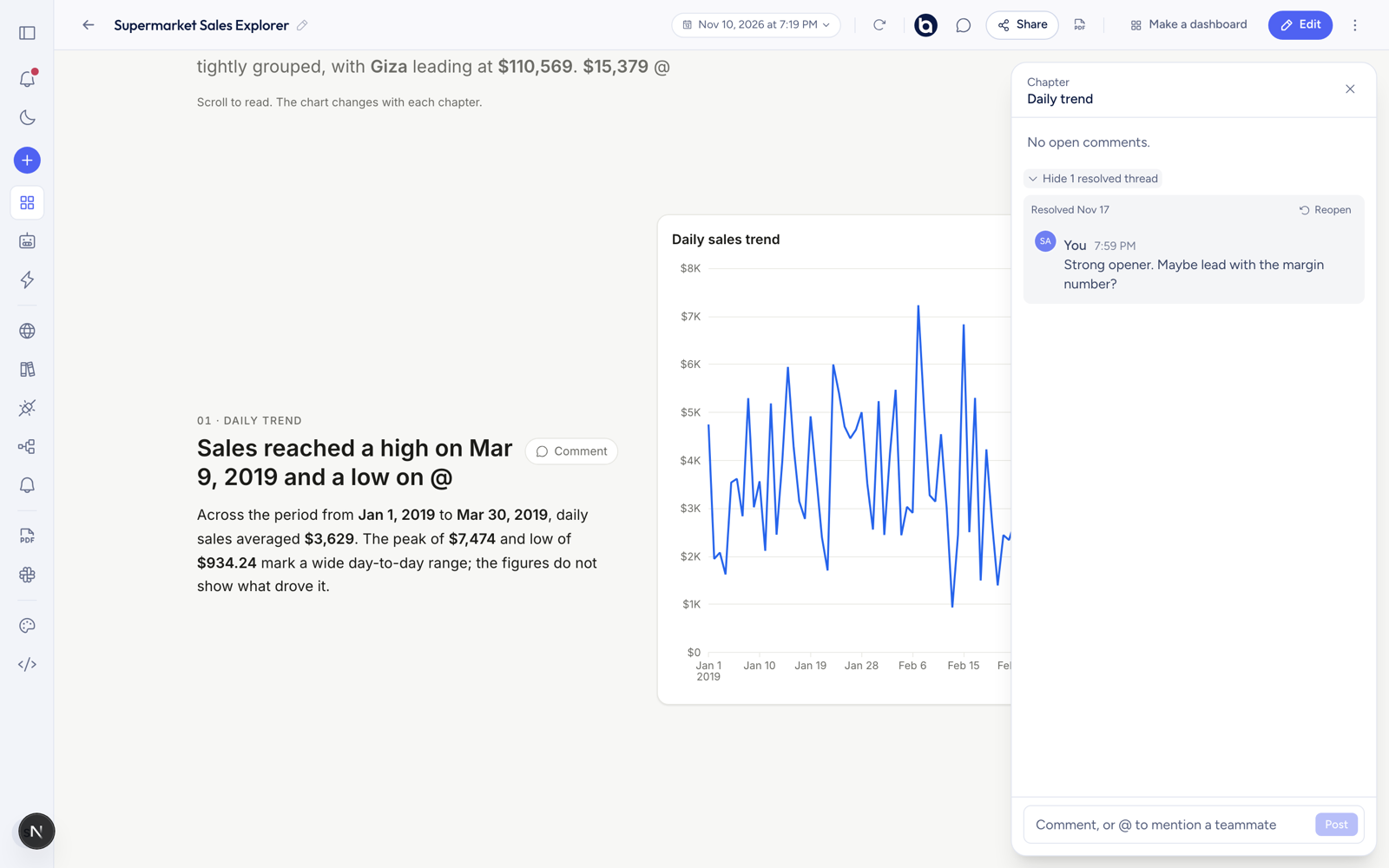
A new comment after a resolve starts a fresh conversation.
Who can comment
| Owner and Admin | Member | Viewer | |
|---|---|---|---|
| Comment on team chats | Yes | Yes | No (viewers can't open chats) |
| Comment on team dashboards and stories | Yes | Yes | Yes |
| Edit a comment | Their own | Their own | Their own |
| Delete a comment | Anyone's | Their own | Their own |
| Resolve or reopen | Yes | Yes | Yes |
There are no comments on:
- Chats or dashboards that use per-member data. Each person sees different rows there, so a comment could show one person's numbers to someone else. See Per-member data access.
- Public share links and embeds. People outside your team never see comments.
In a private project, only the people who can see the project can read its comments or be mentioned.